If you’ve read the first and second posts in this series, you probably have ideas about web templates, design, images, beauty, and structure zinging around in your head. Maybe you’ve figured out how to apply all that. Maybe you’re still overwhelmed. Either way, here are some practical ways to put all the knowledge to use, one web page at a time.
Website page layouts can be effectively created using pre-existing templates or by assembling elements with a block editor. For instance, Five More Talents' church website packages offer a wide selection of fully assembled templates for specific purposes like blogs, events, or homepages. Alternatively, users can leverage WordPress's block editor to combine individual blocks or use block patterns, which are pre-arranged groups of blocks, to quickly build custom page structures.
Today we’re going to talk about the immensely useful topic of page layouts. Once you know the basics of how to edit and put together a page using block editor, you’ll be ready to start designing or redesigning your website with confidence. (If you want to learn more about how to create a beautiful website, you can watch the webinar here.)
How Can You Use Pre-existing Page Templates for Your Church Website?
You can effectively use pre-existing page templates for your church website by selecting the page editing tab and clicking on “Page Attributes” within your church website package. The drop-down menu below “Templates” offers a wide selection of fully assembled templates for various purposes, such as blogs, sermon series, events, a homepage, and child pages. The main structure will already be in place, and all you have to do is fill in the blanks. Of course, you can also mix and match these templates to create something uniquely your own.

What is the WordPress Block Editor and How Does It Help Create Pages?
The WordPress Block Editor is an exciting new tool that helps you quickly and easily create your own pages by combining and inserting various “blocks.” If you don’t have the option of using a pre-existing template, you can leverage this editor. By clicking the plus symbol between existing blocks or the plus sign in the upper left-hand corner, a list of possible blocks will appear. These blocks can range from a simple paragraph of text to a complex photo gallery, and include options like quotes, images, buttons, calendars, and many more.

or the plus sign in the upper left-hand corner:
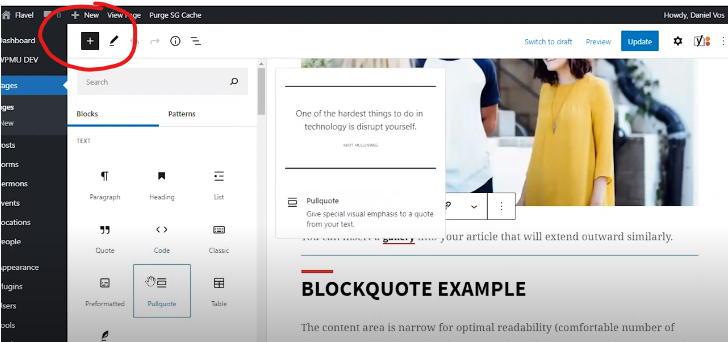
a list of possible blocks will appear. This can be as simple as a plain paragraph of text or as complex as a photo gallery. More options include quotes, images, buttons, calendars, and so many more.
What Are Block Patterns and How Do They Speed Up Web Page Assembly?
Block patterns are essentially groups of blocks strung together, offering a faster way to assemble a web page. While you can use basic blocks for maximum flexibility, by selecting a few block patterns, you can quickly build a whole web page without having to make a decision on each individual block. To get to block patterns, click the plus sign in the upper left-hand corner and select the “Patterns” tab.

These are essentially groups of blocks strung together. By selecting a few block patterns, you can quickly build a whole web page without having to make a decision on each individual block. To get to block patterns, click the plus sign in the upper left-hand corner and select the “Patterns” tab.
How Do You Assemble Web Pages Using Templates, Blocks, and Patterns?
You assemble web pages by starting with either a blank slate or a website template, then using pre-existing page templates or combining blocks and patterns to create page layouts. You can then edit and personalize those pages by inserting images, and finally, apply the five elements of design throughout the process to make your website excellent. These ideas, learned from this post and previous ones, provide what you need to make your website. If you want to learn more about creating a beautiful website, you can read Part 1 and Part 2 of this series or watch the webinar, or specifically about WordPress block editor, read this post. Don’t forget to experiment and enjoy the process!
If you want to learn more about creating a beautiful website, you can read Part 1 and Part 2 of this series or watch the webinar. To learn more specifically about WordPress block editor, you can read this post. And finally, don’t forget to experiment on your own and enjoy the process!
“Beauty is the harmony that still shines through the chaos in the world.”
Herman Bavinck
Photo by Hannes Wolf on Unsplash
Frequently Asked Questions
- 1 How can I quickly set up pages for my church website?
-
If you're using their church website packages, you can select from a wide range of pre-existing page templates for various purposes like blogs, events, or homepages. These templates provide the main structure, allowing you to simply fill in your content.
- 2 What is the WordPress Block Editor and how does it simplify page creation?
-
The WordPress Block Editor is a tool that lets you easily add and arrange different elements, called "blocks," on your web page. You can insert anything from text paragraphs and images to photo galleries and buttons, making it simple to build your page content.
- 3 What are block patterns and when should I use them?
-
Block patterns are collections of pre-arranged blocks that allow for faster web page assembly compared to adding individual blocks. You can use them to quickly build entire pages or sections without having to decide on each individual block, offering a balance between flexibility and speed.
- 4 Can I customize the pre-existing page templates or block patterns?
-
Yes, the article states you can mix and match pre-existing page templates to create a unique design for your church website. While block patterns offer quick assembly, they are built from individual blocks, implying a degree of customizability once inserted.


